How to Set Up WiFi Signal Monitoring on Your Mac
Set up Pulse Guard on Mac: choose a stable location, calibrate your room, test signal changes and tune alert sensitivity for your environment.
Pulse Guard monitors WiFi signal changes and nearby Bluetooth devices on your Mac. It offers camera-free room monitoring with adjustable alerts. To get a useful setup, start with a stable position and test what happens in your own environment.
1. Check compatibility and choose a location
Open the Mac App Store listing to check the current system requirements before installing. Place your Mac where you intend to use it and connect to the network you normally use there. Moving the computer changes its wireless environment, so choose the location before calibration.
2. Establish a baseline
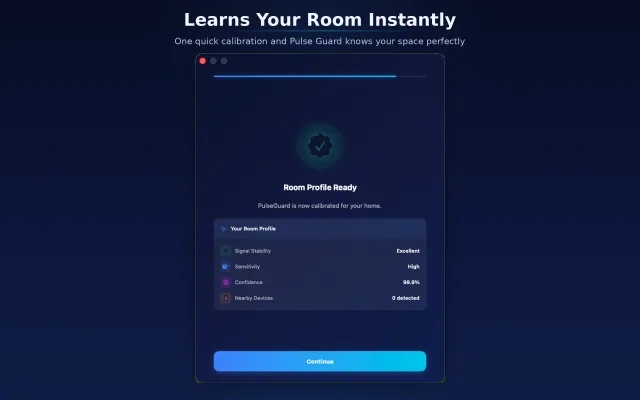
Follow the application's calibration flow in a quiet, stable room. The baseline gives the app a starting point for comparing later signal changes. Avoid moving the Mac or changing the network during this step.
If you later reposition the Mac or change your setup, repeat calibration rather than assuming the old baseline still describes the room.
3. Test normal activity
Walk into and out of the room and review what the app reports. Also observe the room during ordinary activity elsewhere in your space. Signal changes are not a direct identification of a person: network activity, device placement and environmental changes can affect what you see.
Try several normal situations before deciding which alerts are useful. Do not infer reliable coverage of an entire home from a single successful test.
4. Tune sensitivity and alerts
Adjust the sensitivity threshold and available alarm settings. If routine changes create too many alerts, use the controls to tune the setup and test again. If an event you expected does not trigger an alert, review placement and calibration as well as sensitivity.
The goal is to understand the behavior in your room. There is no universal threshold that suits every router, Mac position or environment.
5. Review nearby Bluetooth devices
Pulse Guard also provides a view of nearby Bluetooth devices. Use that view as additional context for your wireless environment. A device appearing in a scan is not, on its own, proof of who is present or whether there is a security incident.
Can I receive information on my iPhone?
Pulse Companion is the related iPhone app for status and notifications. Check its current listing and setup requirements if you want to use it alongside Pulse Guard. Remote features depend on the configuration and connectivity they require.
Understand the limits
Use Pulse Guard as an additional source of information about your environment. It is not a guaranteed intrusion detector, an emergency alarm or a substitute for supervision. Test how your setup behaves when the Mac sleeps, loses connectivity or changes location before relying on any workflow.