HomeKit Automation Not Working? 9 Fixes to Try
Why HomeKit automations stop running and how to fix them: home hub status, location access, accessory responses, time and condition settings, and running rules from a Mac instead.
When a HomeKit automation does nothing, the cause is usually one of a few things: the home hub, location permissions, an unresponsive accessory, or a condition that quietly blocks the rule. Work through these in order.
1. Check your home hub
Most automations run on a home hub, an Apple TV or HomePod that stays at home. In the Home app, open Home Settings → Home Hubs & Bridges and make sure one hub shows as Connected. If none is connected, restart the hub and check it is signed in to the same Apple Account.
2. Allow location for the Home app
Arrive and leave automations need location access. On the iPhone of each person in the automation, go to Settings → Privacy & Security → Location Services → Home and choose Always, and turn on Precise Location.
3. Check who the automation follows
A location automation can trigger for you, for anyone, or for the first or last person. If it is set to a person whose phone is not at home or has location off, it will not fire.
4. Look for "No Response" accessories
If an accessory shows No Response in the Home app, the automation cannot control it. Power-cycle the accessory and check its WiFi or Thread connection.
5. Review time and condition limits
Automations can be limited to certain times or to when someone is home. A forgotten "only after sunset" or "only when I am home" condition is a common cause of rules that never seem to run.
6. Recreate the automation
Corrupted automations happen. Delete it and create it again from scratch rather than editing it.
7. Update everything
Update iOS, the home hub and accessory firmware. Mismatched versions between hub and phones can break automations.
8. Check for duplicate or conflicting rules
Two automations reacting to the same event can cancel each other out, for example one turning lights on and another turning them off.
9. Run the rule from a Mac instead
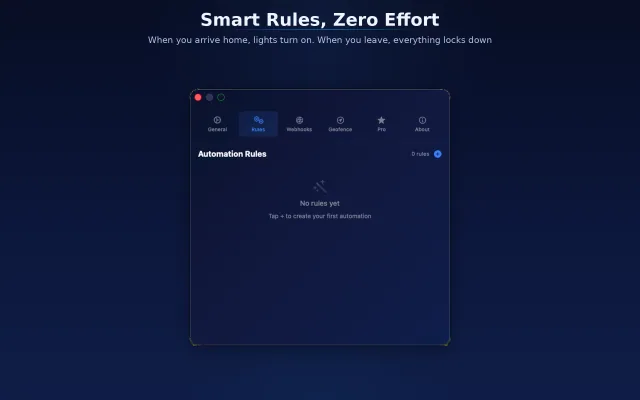
If location-based triggers stay unreliable, a Mac that is always on at home can run the automation itself. Pulse Home runs rules locally on the Mac with WiFi presence or geofence triggers and can control HomeKit or send webhooks to Home Assistant. See how to set up arrive and leave rules.
Frequently asked questions
Why is my HomeKit automation not working when I leave home?
Check that a home hub is connected, that the Home app has Always location access with Precise Location on each person's iPhone, and who the automation is set to follow.
Do HomeKit automations need a home hub?
Most do. An Apple TV or HomePod that stays at home acts as the hub and runs automations even when your phone is away.
Why does my automation say No Response?
An accessory in the automation is offline. Restart it and check its network connection, then test the automation again.