Remove a video background on iPhone, no green screen
Green screen videos usually need a green backdrop and an editor that can key it out. Brolled's Background Removal tool cuts the person out of your clip with one tap, then lets you drop in a new background such as a solid color, a gradient or a stock image, so you get the green-screen effect from an ordinary video.
Try Background Removal in Brolled — free on the App StoreHow to make it with Brolled
- Open Background Removal. Choose Background Removal in Brolled and add your clip.
- Cut out the subject. Let the tool separate you from the original background.
- Pick a new background. Choose a solid color, a gradient or a stock background.
- Preview and export. Check the edges while the clip plays, then export.
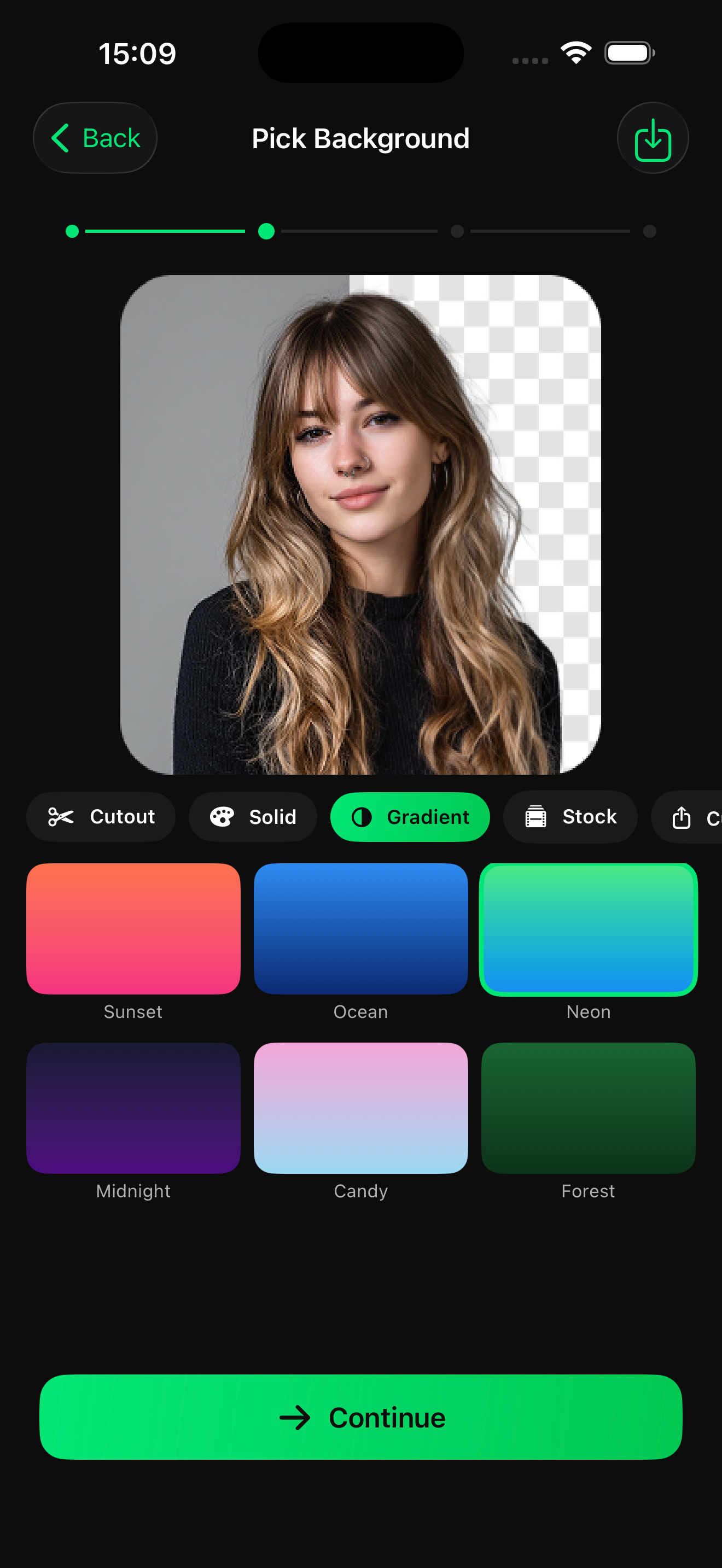
Tips for the format
- Film against a plain, well-lit wall. Clear contrast between you and the background gives cleaner edges.
- Avoid fast hand movements and loose hair against busy backgrounds; these are the hardest areas to cut out.
- Use the new background to set the scene, for example a news-style gradient for commentary videos.
Frequently asked questions
Do I need a green screen?
No. The tool separates the subject from an ordinary background, so you can film anywhere with decent light.
What backgrounds can I use?
Solid colors, gradients and stock backgrounds are available in the background picker.
Is it free?
All Brolled tools are unlocked in the free download, which includes 3 free credits. Free exports are SD with a watermark.