How to Apply Cinematic LUTs to iPhone Videos
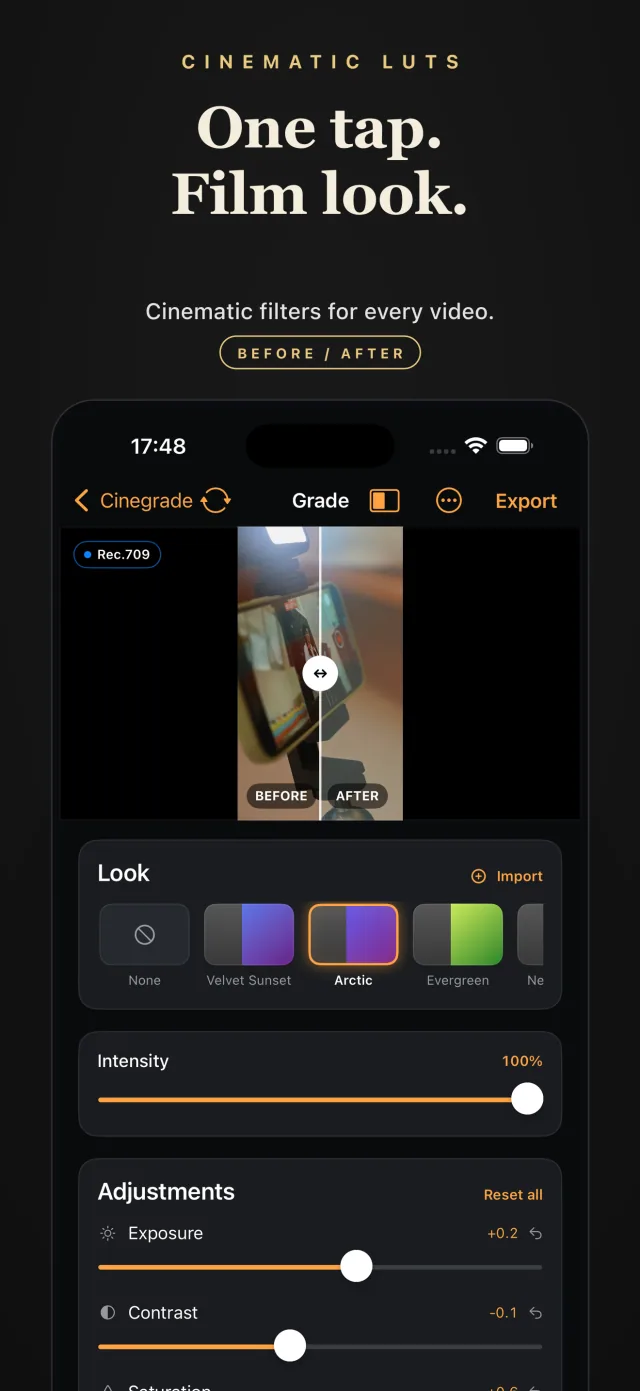
A practical Cinegrade workflow: import an iPhone clip, choose a cinematic LUT, adjust its intensity and color controls, then review your exported video.
A cinematic look starts with a clip you can see clearly and a color treatment that suits it. Cinegrade lets you apply ready-made LUTs to video and photos on iPhone or iPad, then adjust the result without building a timeline.
1. Choose a short clip to work with
Start with a clip from your own library. A scene with a face, some shadow detail and a brighter area makes it easier to judge whether a look works across the image. Keep your original so you can compare the export with the source.
2. Import the clip and choose a look
Open Cinegrade and import your video. Browse the available looks and choose a starting point: warmer film-inspired tones, a teal-and-orange palette or a faded retro treatment. Try more than one look on the same scene before committing.
A LUT provides a color transformation; it does not change the composition, lighting or performance in your footage. If the source is very dark or bright, adjust the image as well as the look.
3. Adjust intensity and color
Reduce the look's intensity if skin or familiar objects stop looking natural. Use exposure for overall brightness, contrast for the separation between dark and light areas, saturation for color strength and temperature for a warmer or cooler balance. Add grain only if it suits the result you want.
Change one setting at a time and play the clip after each adjustment. A frame that looks good while paused can still have bright areas or skin tones that look uneven as the subject moves.
4. Check the whole clip
Look at the start, middle and end. Pay attention to changes in lighting, reflections and faces. If you are making a set of clips for a reel, compare similar scenes so the color feels consistent. Using the same LUT is a useful starting point, but different lighting can need different adjustments.
5. Export and review the saved file
Export your video and watch the saved result before posting it. Check that the color, framing and motion match your intention. Sharing platforms may process the upload, so review the published version too.
Can I use the same workflow for photos?
Yes. Cinegrade supports still photos as well as video. Import a photo, choose a look and fine-tune it with the same color controls. That can help give a photo post and a related video a consistent style.
Before you download
Cinegrade is available for iPhone and iPad. The App Store listing has the current operating-system requirements, regional availability and purchase details. This guide covers the built-in looks and controls described on the product page; it does not assume support for importing external LUT files.